

Get Connected
Once you have added all the Stream Keys for your chosen platforms you are now ready to add the Casterlabs-Multistream as a desination in your streaming software.
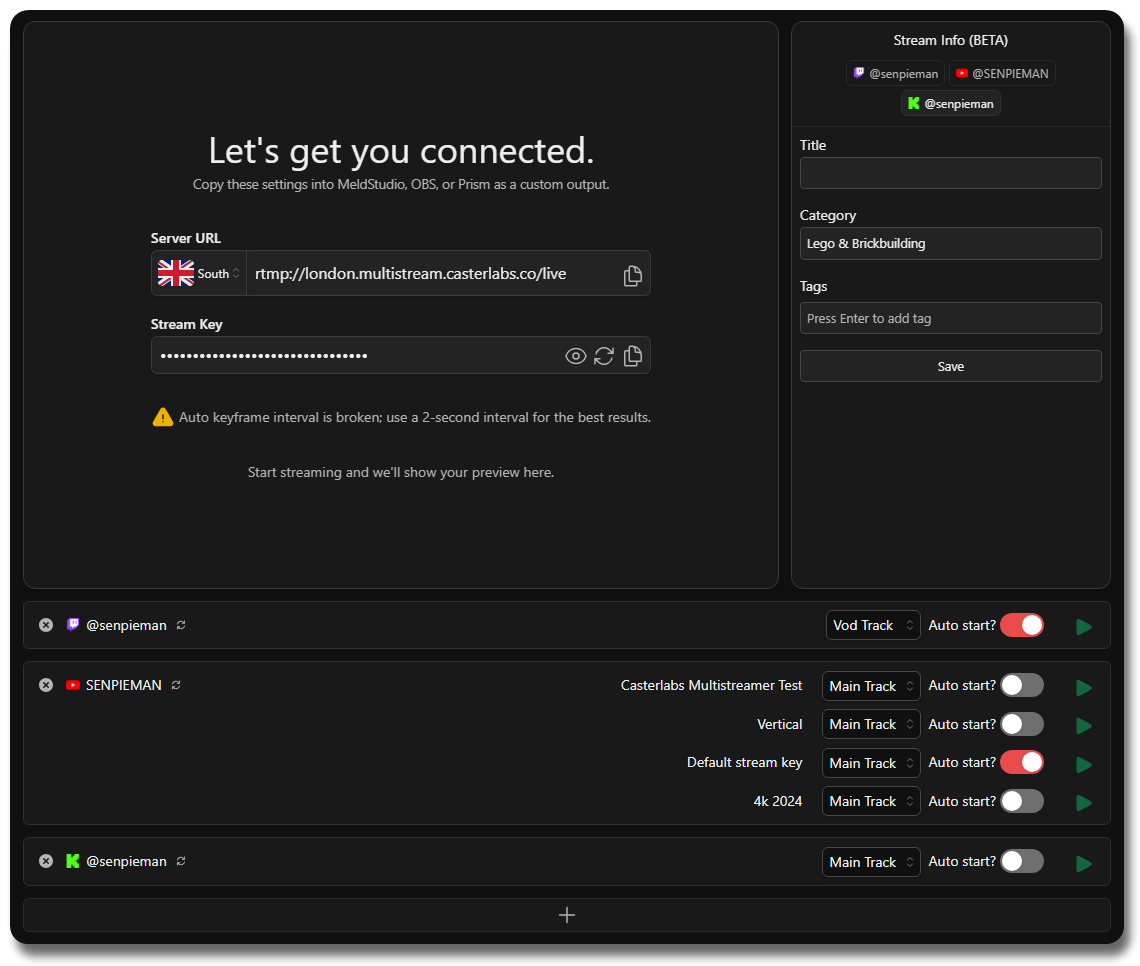
From the Dashboard you have the option to select the Server to stream to that is closest to you.
Once you have all your credentials set, you are ready to add them into your streaming software of choice.
Setting up your software
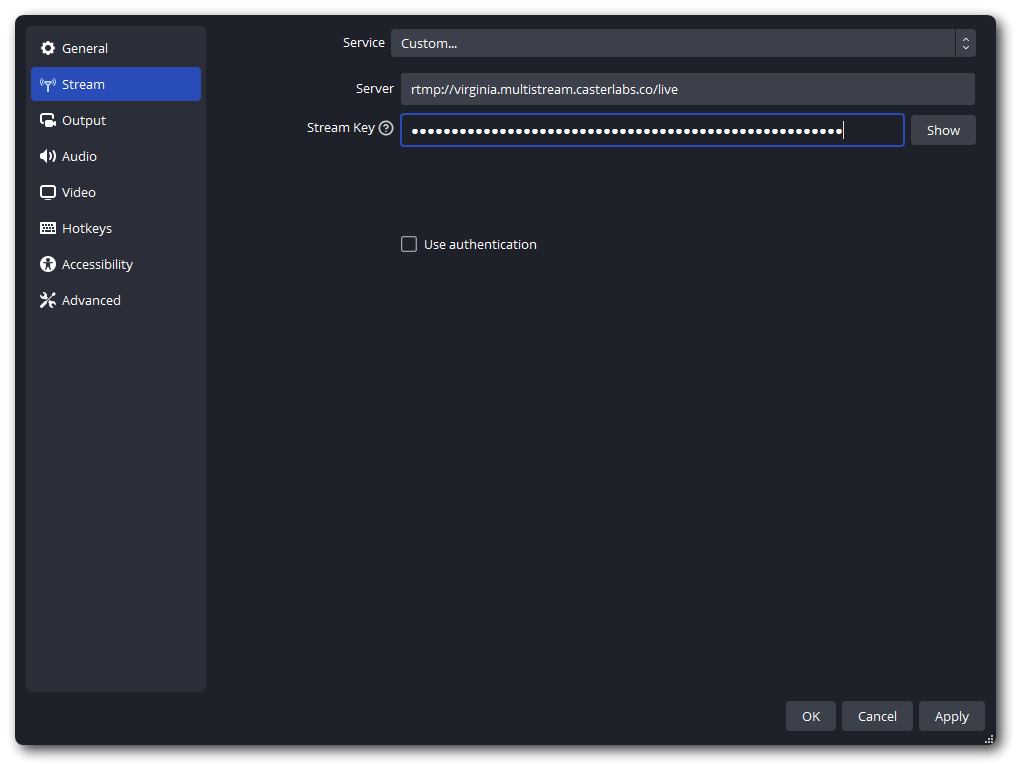
Section titled “Setting up your software”Under Settings > Stream Settings select Custom RTMP from the drop-down and in the Server field paste the Server URL from the Casterlabs-Multistream Dashboard and your streamkey into the Stream Key field, then click OK.
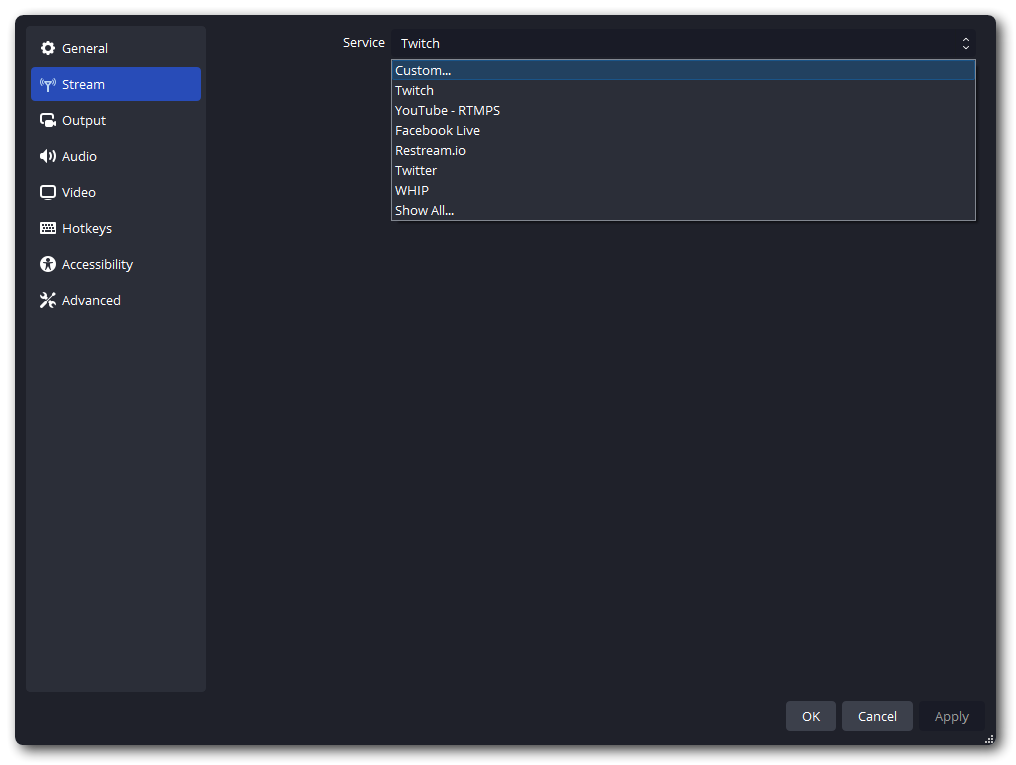
From here you can add in your Casterlabs Multistreamer credentials (Server URL and Streamkey) and hit Apply.
Your default output will now be set to Casterlabs.
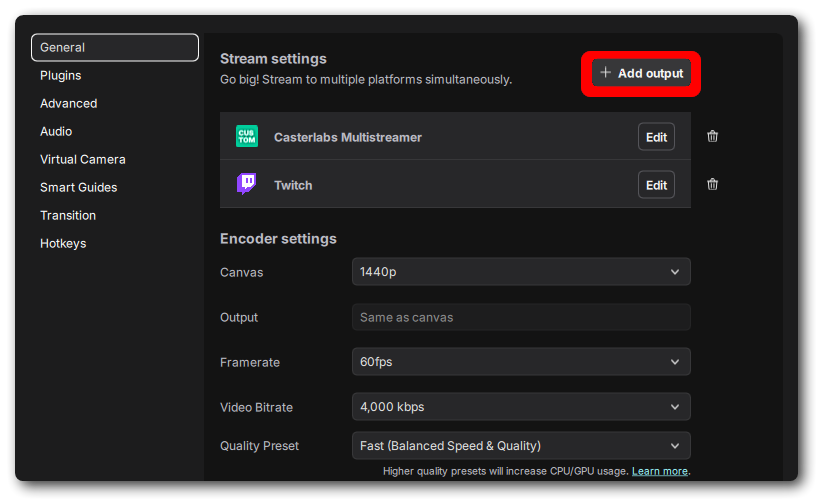
Adding Casterlabs Multistreamer to Meld Studio as a Stream Output is simple. Under your settings (File > Preferences > General) you can click on Add Output and then select Custom Destination.
This will then open a new window for you to add in your Casterlabs-Multistream credentials.
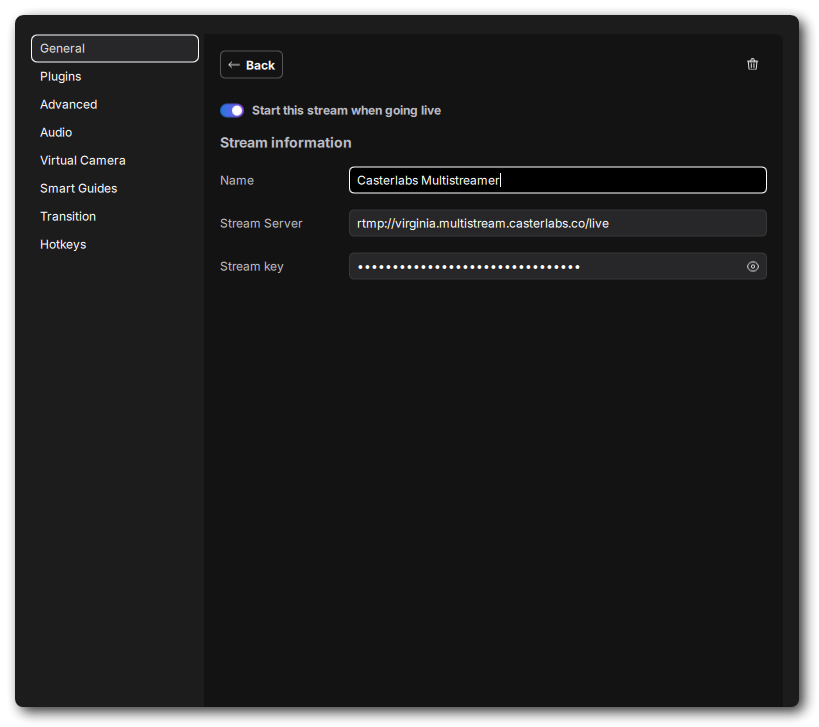
From here you can give the Output a custom name and paste in your Casterlabs-Multistream Server and Stream Key information.
Once done just hit Back and your Stream Output is saved.
On your main window, the Custom Destination will now appear in the top right of the software with a toggle switch next to it.
To set up Casterlabs-Multistream as an output you need to add it as a Custom RTMP destination.
You do this from the top of the main window by clicking Custom RTMP.

This will open a new Window in which to add your Casterlabs-Multistream Server information (which you find on your CLMS Dashboard)
Select RTMP from the Drop-Down.
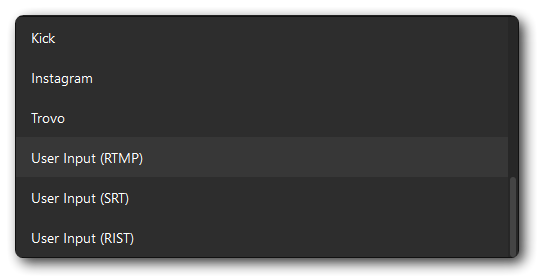
From this Window you can then add in your Casterlabs-Multistream credentials, Stream URL and Stream Key. You can also give it a Custom Name.
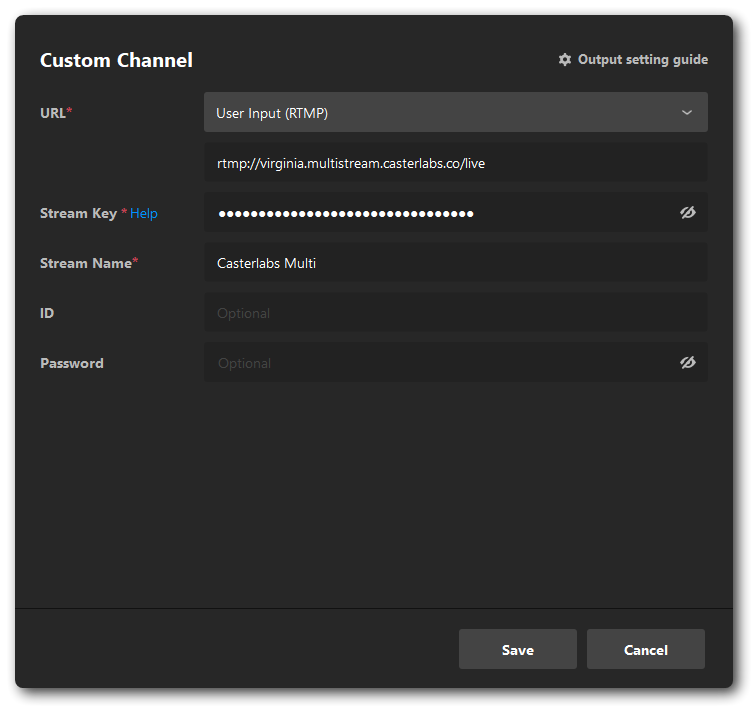
Once all your information is put in, hit Save and you are ready to go live!
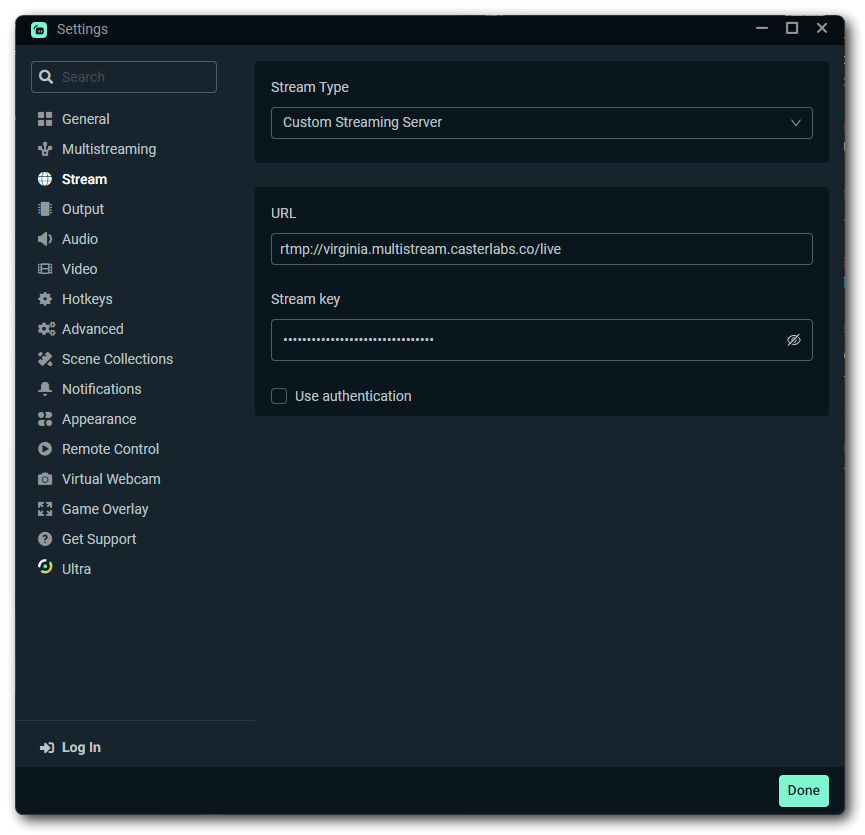
You can add Casterlabs-Multistream as an Output by going to your Streamlabs Desktop Settings > Stream.
From the Dropdown under Stream Type select Custom Streaming Server, and in the URL box add in your Casterlabs-Multistream Server URL and your Stream Key, then hit Done. Your default output will now be set to Casterlabs-Multistream.
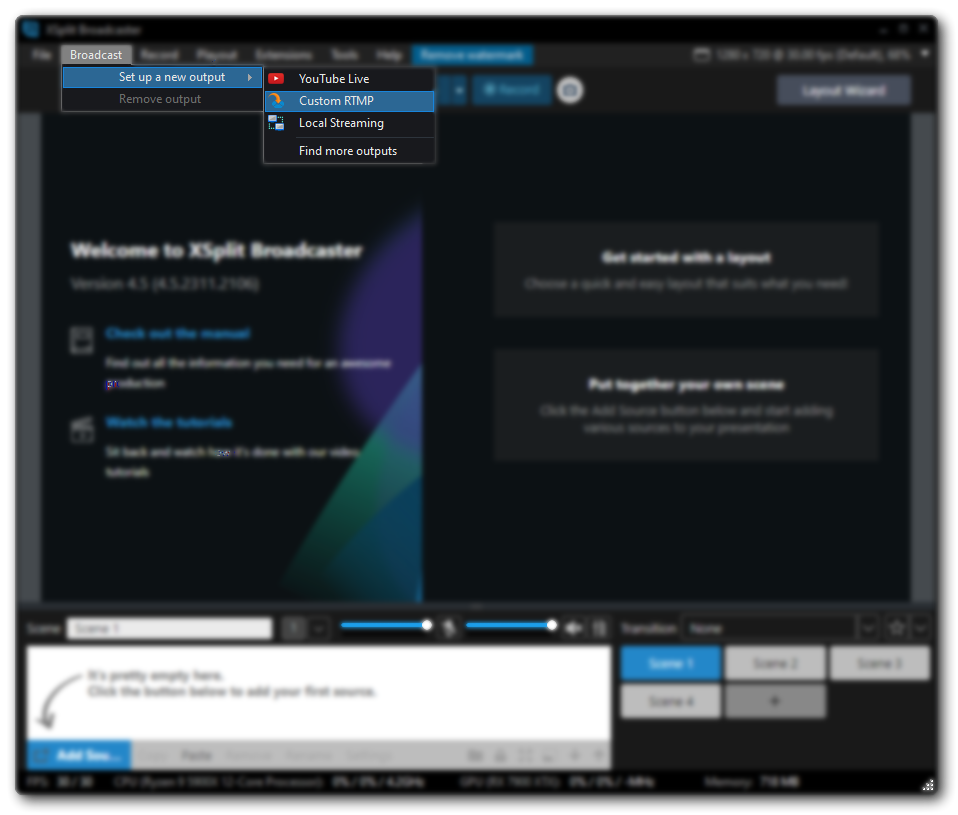
Casterlabs-Multistream can be added as a Custom Output by going to Broadcast > Custom RTMP
This will open up a new window for you to add in your Casterlabs-Multistream credentials and give the RTMP output custom information.
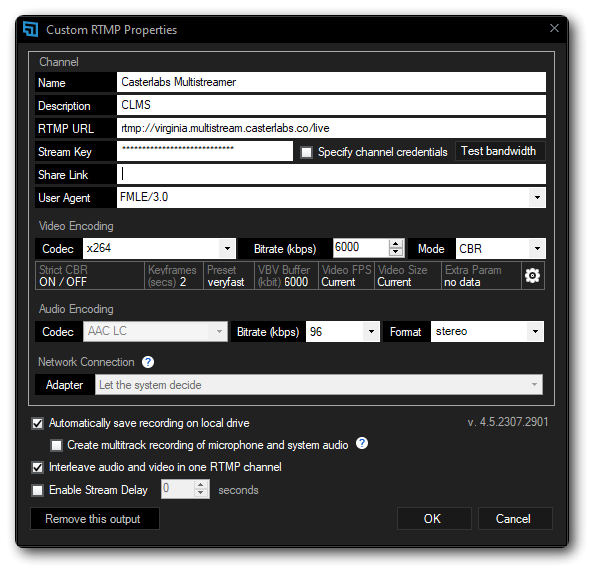
Once set as your Output, when you Go Live it will send your stream to us!
Once you start streaming to Casterlabs-Multistream, you will see a Preview of your stream on this page. If no Preview shows, then you haven’t copied over your credentials properly. Double check them, and try again.