

Adding Platforms
Once you are signed up and logged in to the Casterlabs-Multistream Dashboad you will see a Server URL and Stream Key - these will be added into your broadcasting software of choice, first let’s add some platforms to sream to!
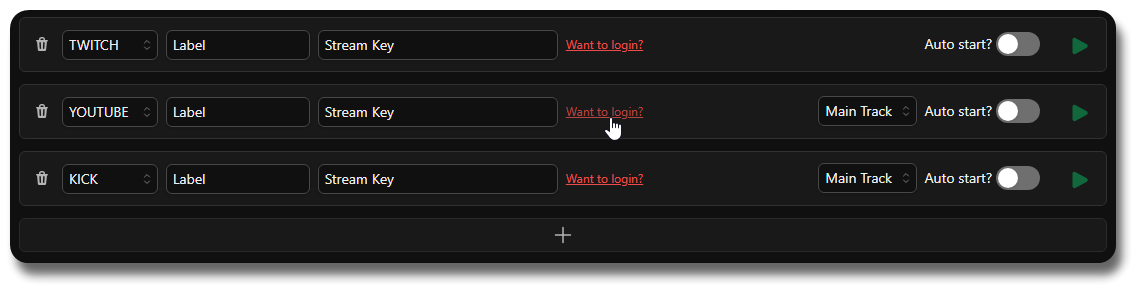
From here you can either paste in your Stream Key manually, or you can click the Want to Login? button to log in to your Casterlabs account and have the Stream Key auto-filled for you.
Pick Your Platform
Section titled “Pick Your Platform”Check the guides below for help finding your streamkeys if you don’t want to log in with Casterlabs and want to add platforms manually.
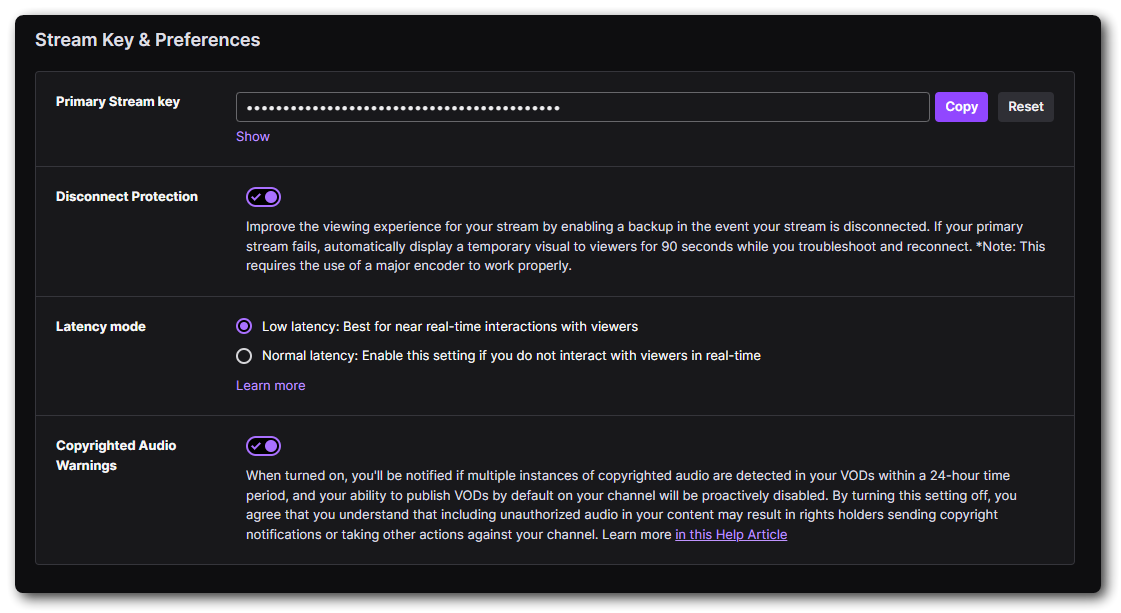
If you go to your Twitch Stream Dashboard: dashboard.twitch.tv
You will find your Stream Key under Settings > Stream on the Sidebar. From here you can copy your Key and paste that in to the Casterlabs Multistreamer as a Destination.
Head to your YouTube Creator Studio and navigate to your Live Dashboard.
From here under “Select Stream Key” from the Dropdown menu select the option to Create New Stream Key.
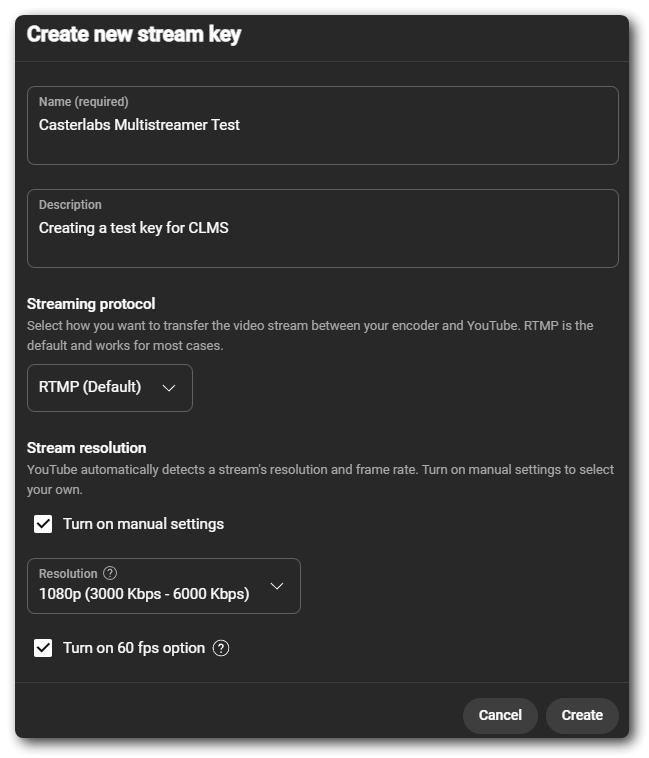
This will generate a new persistent stream key for you.
Persistent Stream Keys
A persistent Stream Key is a key that you can use over and over. This makes going live through CLMS as simple as clicking a button. If you want to use Scheduled Streams/Events through YouTube you will need to copy the stream key that each broadcast generates.
Give your stream key a name, and set up the bitrate settings for the key.
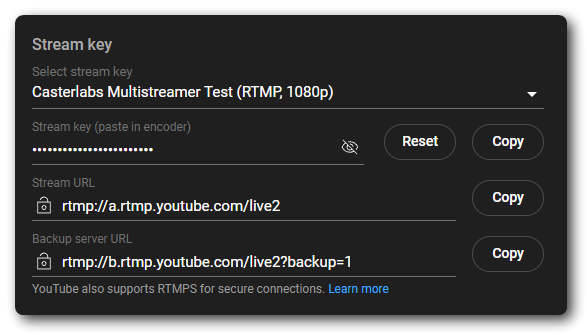
Once you have created a new Stream Key you can click the Copy button next to it and paste that in to your Casterlabs Multistreamer Dashboard.
We hope to have the option to use Scheduled Streams in the future, but for now you will need to use the persistent stream key. Keep an eye on our Discord for updates on this feature.
You can find your Stream Key for Kick by going to your Dashboard dashboard.kick.com/stream
Once there you will find your Stream Key under Channel > Stream URL & Key from the sidebar.
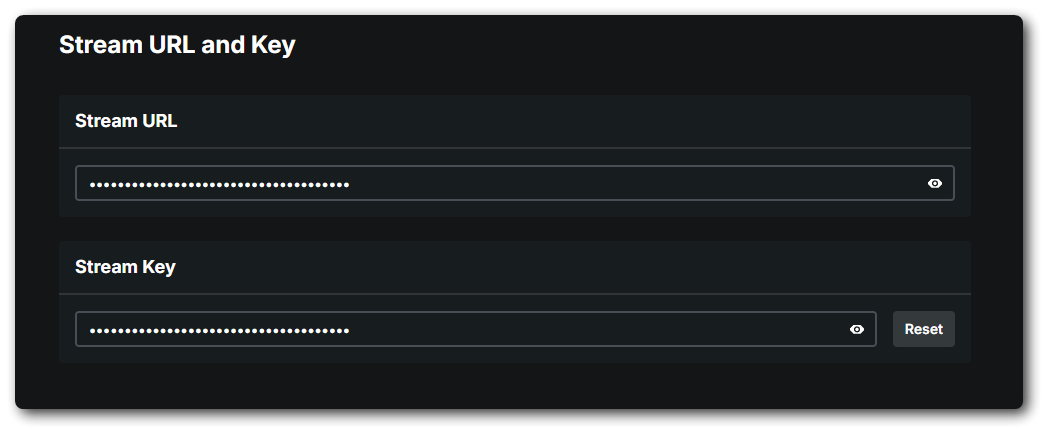
Once you have copied this and pasted it as a destination in Casterlabs Multistreamer you are all set.
To get your Stream Key for Trovo simply head to your Creator Dashboard studio.trovo.live
You will find your Stream Key on the front page of the Dashboard. Click Copy and head to your Casterlabs Multistreamer Dashboard and paste it in.
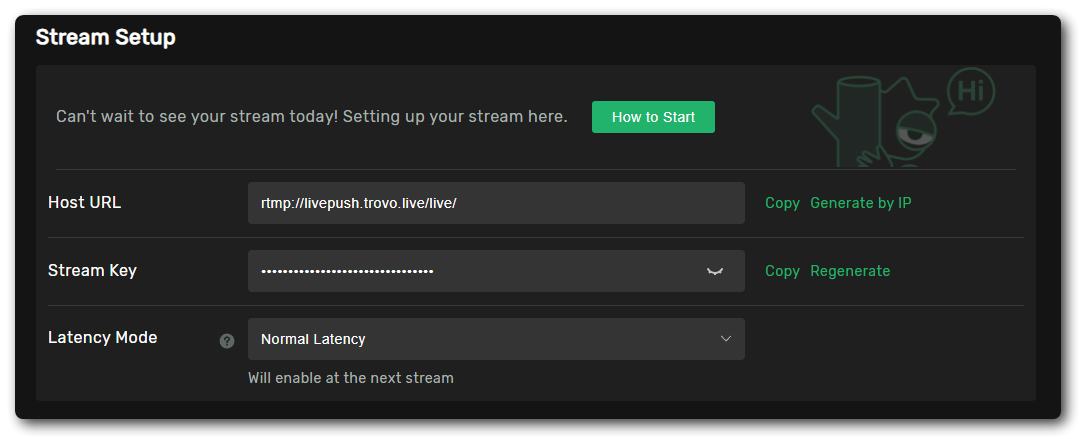
To get the Stream Key for your DLive head to your Dashboard dlive.tv/s/dashboard
At the bottom of the panel to set your Stream Information click the Stream URL & Key button.
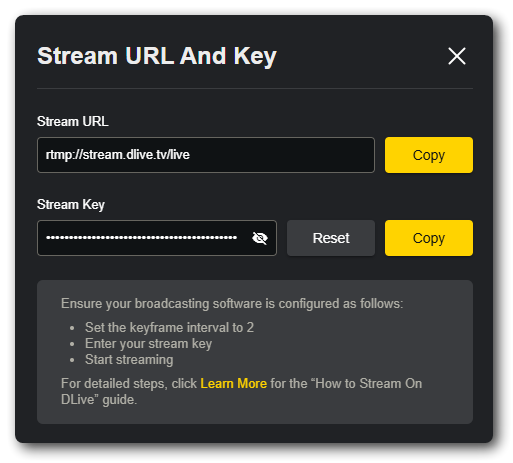
This window will then pop-up. Copy your Stream Key and paste it in to your Casterlabs Multistreamer Dashboard.
You can add any RTMP service as a destination in Casterlabs Multistreamer. All you need is the RTMP URL and your Stream Key.

To do this, select the RTMP option from the dropdown menu and paste in your RTMP URL and Stream Key.