

Stream Labels
Casterlabs-Caffeinated has a powerful suite of alerts suitied for all possible usecases. Whether you stream to one platform, or multiple platforms our alerts package is fully flexible for your needs.
All Casterlabs-Caffeinated stream Labels can be added into your streaming software (OBS, Meld Studio etc) as Browser Sources.
You can have two types of Follower Labels that can be added to your livestream via Casterlabs-Caffeinated.
Recent Follower
Section titled “Recent Follower”The Recent Follower label will display the last user to follow your channel(s). This can be customized in the app using the Styling options, and then added to your streaming software as a Browser Source.
You can customize the way this label looks with the standard styling options (see below)
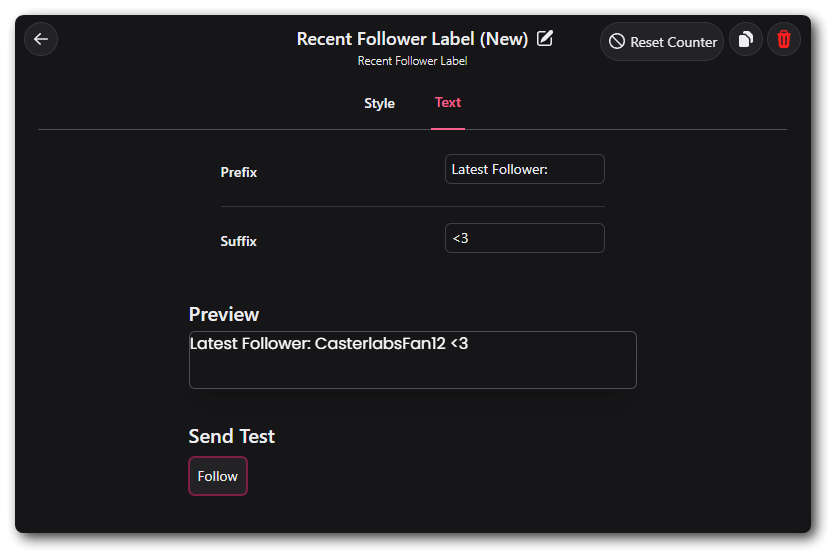
These labels can also be given Prefix and Suffixes.
Follower Count
Section titled “Follower Count”As with the Recent Follower, you can add your current Follower count to your broadcasting software as a Browser Source after you have customized it.
The Follower Count can be set to display a total number of Followers for a specific platform (i.e Twitch) or it can also be set to give you a full total of every platform that is connected in Accounts.
Recent Subscriber
Section titled “Recent Subscriber”The Recent Subscriber label will display the last user to sub to your channel. This can be customized in the app using the Styling options, and then added to your streaming software as a Browser Source.
Subscriber Count
Section titled “Subscriber Count”As with the Recent Subscriber, you can add your current Sub count to your broadcasting software as a Browser Source after you have customized it.
The Sub Count can be set to display a total number of subscribers for a specific platform (i.e Twitch) or it can also be set to give you a full total of every platform that is connected in Accounts.
A Stream Uptime counter can be added to your Broadcaster Software as a Browser Source.
This will count up from the time your livestream begins. You can customize the way this label looks with the standard styling options (see below)
Styling
Section titled “Styling”From the main Widget window you can set all of the styling customization options such as text font, color and style.
| Option | Description |
|---|---|
| Duration (in seconds) | Can be changed to however long you want the alert to be displayed. |
| Font | These can be set in Caffeinated from any Font you have saved on your computer. (see Fonts for more) |
| Font Size | Use the slider to change the size of your font. |
| Font Weight | Changes how bold your font is. |
| Letter Spacing | Can change how spaced out your lettering is. |
| Text Align | Set where you want your alert text to align to. |
| Text Color | Changes the colour of your alert text. (Can be set by RGB, Slider or Hex) |
| Highlight Color | Changes the color of the username of the Follower. (Can be set by RGB, Slider or Hex) |
| Text Vertical Offset | Changes the Vertical offset of your alert text. |
| Text Horizontal Offset | Changes the Horizontal offset of the text. |
| Shadow | Adds a drop shadow to your text |
| Outline Size | Adds an outline to your text. |
Once you have styled your Label all you have to do is click the Copy Link button in the top right corner and paste that in to a new Browser Source in your streaming software.