

Stream Goals
Caffeinated has a powerful suite of alerts suitied for all possible usecases. Whether you stream to one platform, or multiple platforms our alerts package is fully flexible for your needs.
All Caffeinated stream event Alerts can be added into your streaming software (OBS etc) as Browser Sources.
You can have two types of Follower Labels that can be added to your livestream through Caffeinated.
Follower Goals
Section titled “Follower Goals”You can add this Widget to your stream overlay to display a progress bar that displays how many Followers to you are hoping to achieve. With every new follow on your channel that you receive, the bar will progress and track your distance to the goal target.
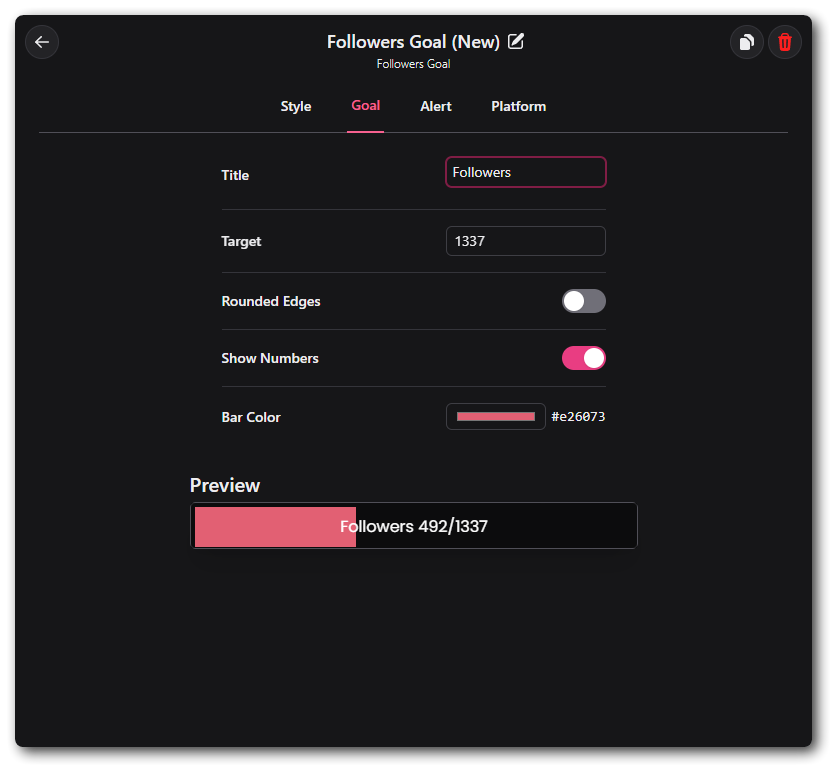
Daily Follower Goals
Section titled “Daily Follower Goals”Daily follower goals work in exactly the same way as the persistent Goal Widget does, except it will reset. You can add this Widget to your stream overlay to display a progress bar that displays how many Followers to you are hoping to achieve. With every new follow on your channel that you receive, the bar will progress and track your distance to the goal target.
Subscriber Goals
Section titled “Subscriber Goals”You can add this Widget to your stream overlay to display a progress bar that displays how many Subs to you are hoping to achieve. With every new subscription to your channel that you receive, the bar will progress and track your distance to the goal target.
Daily Subscriber Goals
Section titled “Daily Subscriber Goals”The Daily Subscriber goal work in exactly the same way as the persistent Goal Widget does, except it will reset. You can add this Widget to your stream overlay to display a progress bar that displays how many Subs to you are hoping to achieve. With every new subscription on your channel that you receive, the bar will progress and track your distance to the goal target.
Within Caffeinated a Donation alert can be triggered by multiple events.
- Twitch Bits
- YouTube Super Chats
- Trovo Spells
- Dlive Lemons
- TikTok Gifts
- Ko-Fi Tips
As with all other alerts, you can have a one-for-all Browser Source which will combine all evenets from all selected Platforms. Or you can set up seperate alerts for individual platforms.
Styling
Section titled “Styling”From the main Widget window you can set all of the styling customization options such as text font, color and style.
| Option | Description |
|---|---|
| Duration (in seconds) | Can be changed to however long you want the alert to be displayed. |
| Font | These can be set in Caffeinated from any Font you have saved on your computer. (see Fonts for more) |
| Font Size | Use the slider to change the size of your font. |
| Font Weight | Changes how bold your font is. |
| Letter Spacing | Can change how spaced out your lettering is. |
| Text Align | Set where you want your alert text to align to. |
| Text Color | Changes the colour of your alert text. (Can be set by RGB, Slider or Hex) |
| Highlight Color | Changes the color of the username of the Follower. (Can be set by RGB, Slider or Hex) |
| Text Vertical Offset | Changes the Vertical offset of your alert text. |
| Text Horizontal Offset | Changes the Horizontal offset of the text. |
| Shadow | Adds a drop shadow to your text |
| Outline Size | Adds an outline to your text. |