

Stream Alerts
Caffeinated has a powerful suite of alerts suitied for all possible usecases. Whether you stream to one platform, or multiple platforms our alerts package is fully flexible for your needs.
All Caffeinated stream event Alerts can be added into your streaming software (OBS etc) as Browser Sources.
Available Alerts
Section titled “Available Alerts”Clicking on the Widgets tab in Caffeinated will show you all the available Widgets including Alerts.
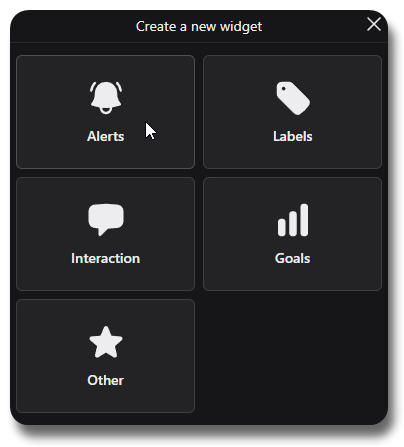
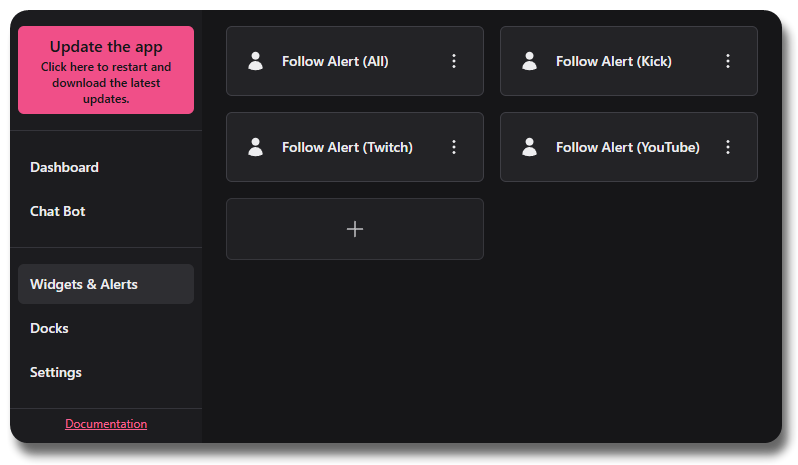
Clicking on the big plus button will bring up a selection of all the available Widgets, simply select the Alerts button to bring up a selection of all the available Alerts.
From this pop-up you can select the type of alert you want to create.
Alert Types
Section titled “Alert Types”Follow alerts can be configured in Caffeinated and added to OBS etc. as a Browser Source. You can choose to have them work either as one alert for all connected platforms or individual ones.
These alerts can be customized with different text styles, audio and images - and can even use unique Fonts you have saved on your computer.
YouTube Subscribers are Followers
Caffeinated defines YouTube Subscribers as “Followers” - meaning anyone that Subscribes to your YouTube Channel will trigger a Follower event in Caffeinated. For YouTube Members please check out Subscription Alerts.
Alert Audio
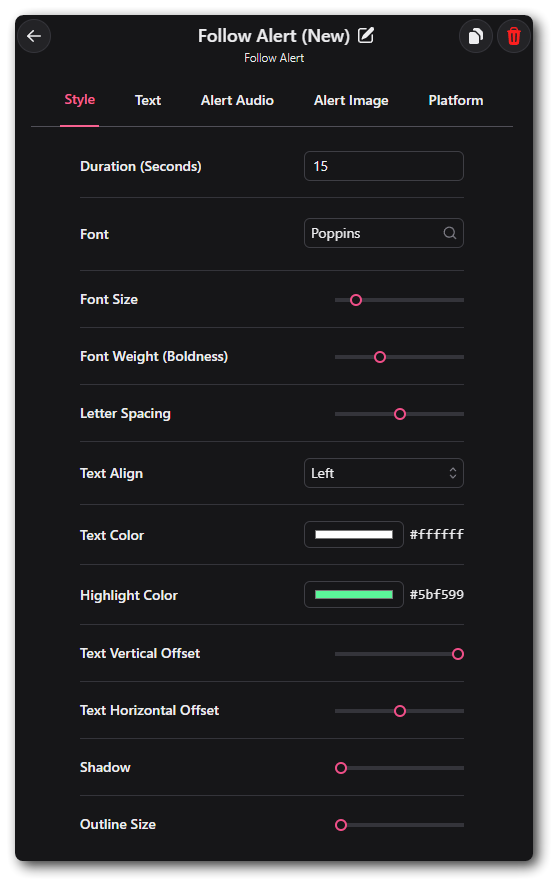
Section titled “Alert Audio”Under the Audio tab any sound you want to trigger when the alert goes off can be set here. Simply browse to the audio file saved on your computer.
Alert Image
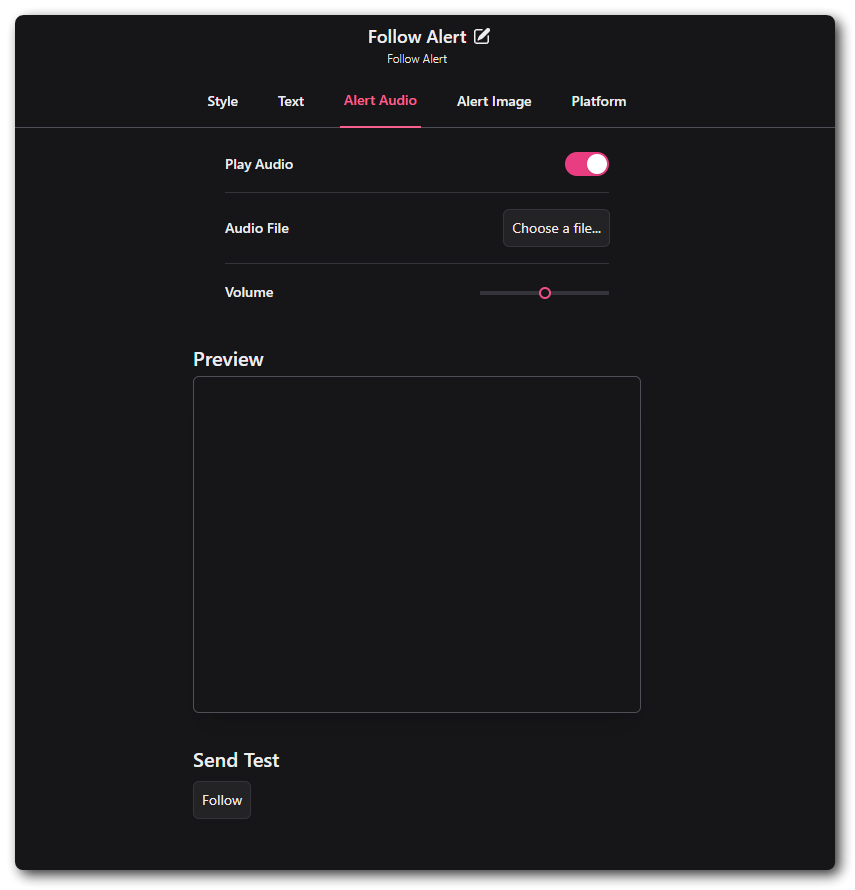
Section titled “Alert Image”Caffeinated supports all video and image file types (png, jpg, mp4, webp, webm). As with the audio file, just locate the file on your system.
Platform
Section titled “Platform”Caffeinated will display alerts triggered from whichever platform is selected from the linked accounts that have been set. Selecting all will send follows from all those platforms.
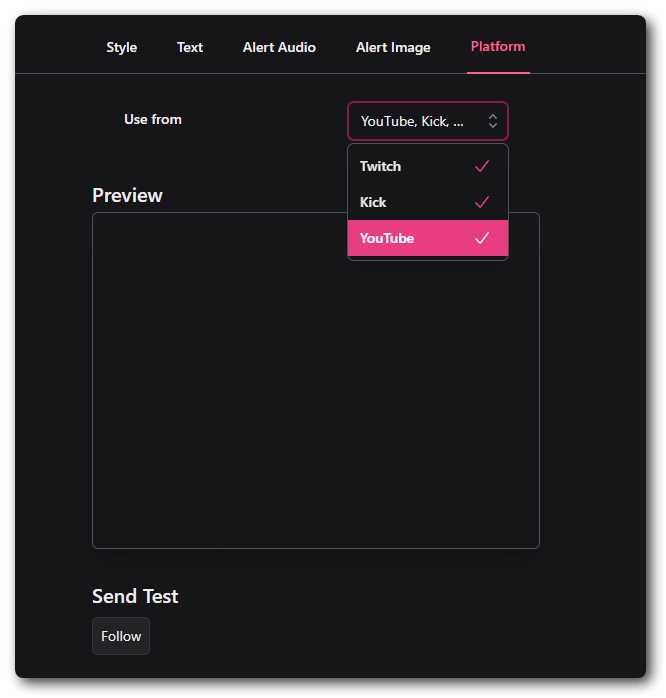
If you want per-platform alerts, just follow the same steps and set-up individual alerts for them.
Subscription alerts can be configured in Caffeinated and added to OBS etc. as a Browser Source. You can choose to have them work either as one alert for all connected platforms or individual ones.
These alerts can be customized with different text styles, audio and images - and can even use unique Fonts you have saved on your computer.
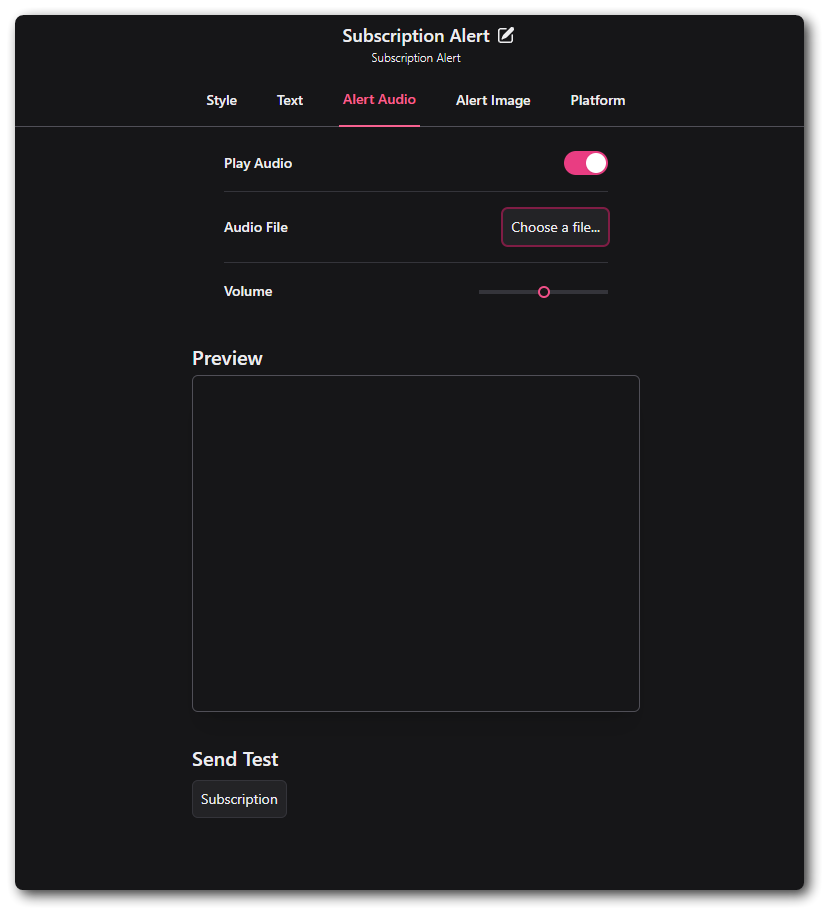
Alert Audio
Section titled “Alert Audio”Under the Audio tab any sound you want to trigger when the alert goes off can be set here. Simply browse to the audio file saved on your computer.
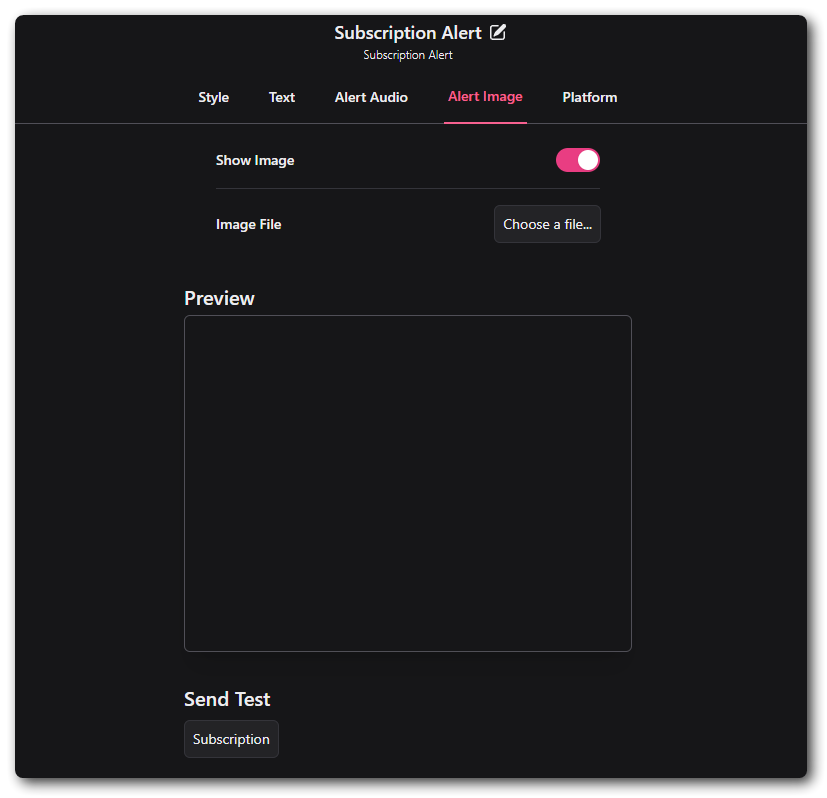
Alert Image
Section titled “Alert Image”Caffeinated supports all video and image file types (png, jpg, mp4, webp, webm). As with the audio file, just locate the file on your system.
Platform
Section titled “Platform”Caffeinated will display alerts triggered from whichever platform is selected from the linked accounts that have been set. Selecting all will send subscriptions from all those platforms.
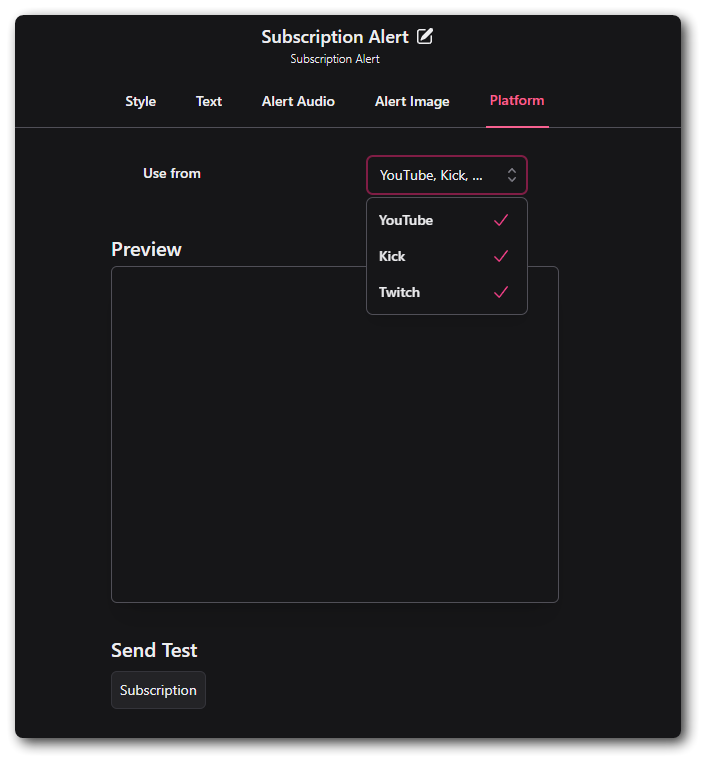
If you want platform specific alerts, just follow the same steps and set-up individual alerts for them.
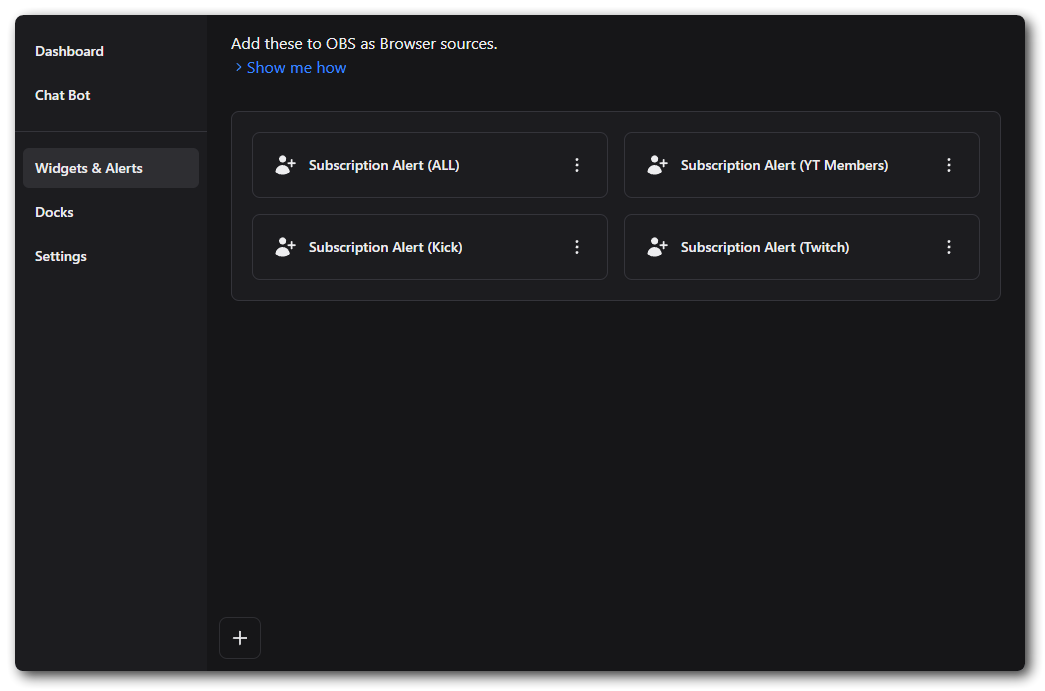
Within Caffeinated a Donation alert can be triggered by multiple events.
- Twitch Bits
- YouTube Super Chats
- Trovo Spells
- Dlive Lemons
- TikTok Gifts
- Ko-Fi Tips
As with all other alerts, you can have a one-for-all Browser Source which will combine all evenets from all selected Platforms. Or you can set up seperate alerts for individual platforms.
Text To Speech (TTS)
Section titled “Text To Speech (TTS)”Donations and Tips that contain messages left by the viewer can be read out by TTS. There are a wide variety of Voices built-in to the application.
You can test out the different TTS voices included in Caffeinated on our TTS Page.
Raid alerts can be configured in Casterlabs-Caffeinated and added to your streaming software as a Browser Source. These will trigger the on-stream notification whenever your channel is Raided by another streamer.
As with all the Alerts there are vast customization options availible within Casterlabs-Caffeinated.
Styling
Section titled “Styling”From the main Widget window you can set all of the styling customization options such as text font, color and style.
| Option | Description |
|---|---|
| Duration (in seconds) | Can be changed to however long you want the alert to be displayed. |
| Font | These can be set in Caffeinated from any Font you have saved on your computer. (see Fonts for more) |
| Font Size | Use the slider to change the size of your font. |
| Font Weight | Changes how bold your font is. |
| Letter Spacing | Can change how spaced out your lettering is. |
| Text Align | Set where you want your alert text to align to. |
| Text Color | Changes the colour of your alert text. (Can be set by RGB, Slider or Hex) |
| Highlight Color | Changes the color of the username of the Follower. (Can be set by RGB, Slider or Hex) |
| Text Vertical Offset | Changes the Vertical offset of your alert text. |
| Text Horizontal Offset | Changes the Horizontal offset of the text. |
| Shadow | Adds a drop shadow to your text |
| Outline Size | Adds an outline to your text. |
Adding Browers Sources
Section titled “Adding Browers Sources”Adding sources to your streaming software is very simple. Once you have your Widget or Alert all customised in Caffeinated, just click on > to copy the source URL to your clipboard, and paste it in to your Streaming Software.
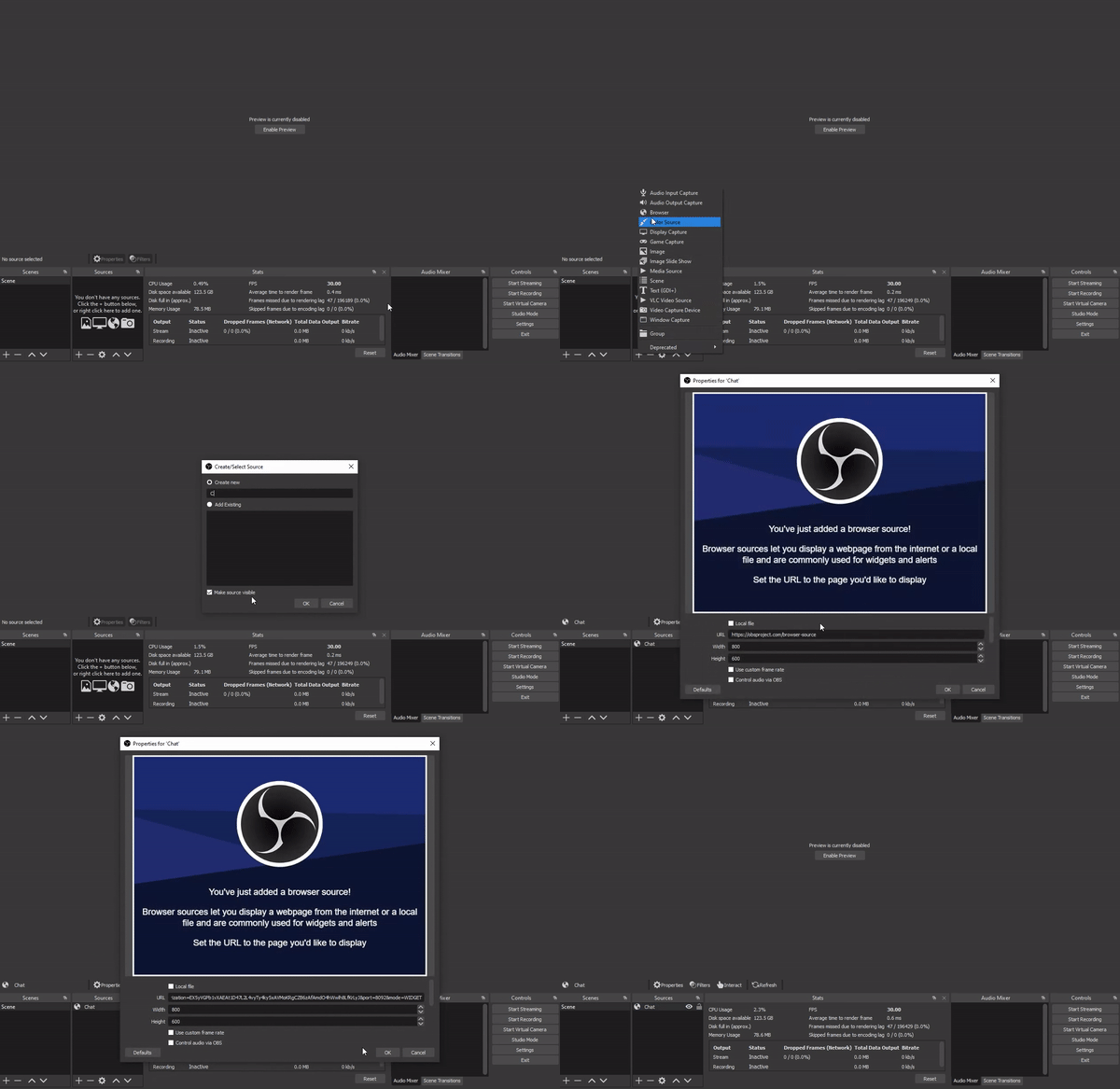
Once added to your streaming software any event that triggers one of these alerts will be displayed on stream.